
Osool Listings
Review listing copy and media before publishing
A practical editorial checklist for copy and images that makes listings clearer for clients and easier for marketing follow-up.
Product Screenshots
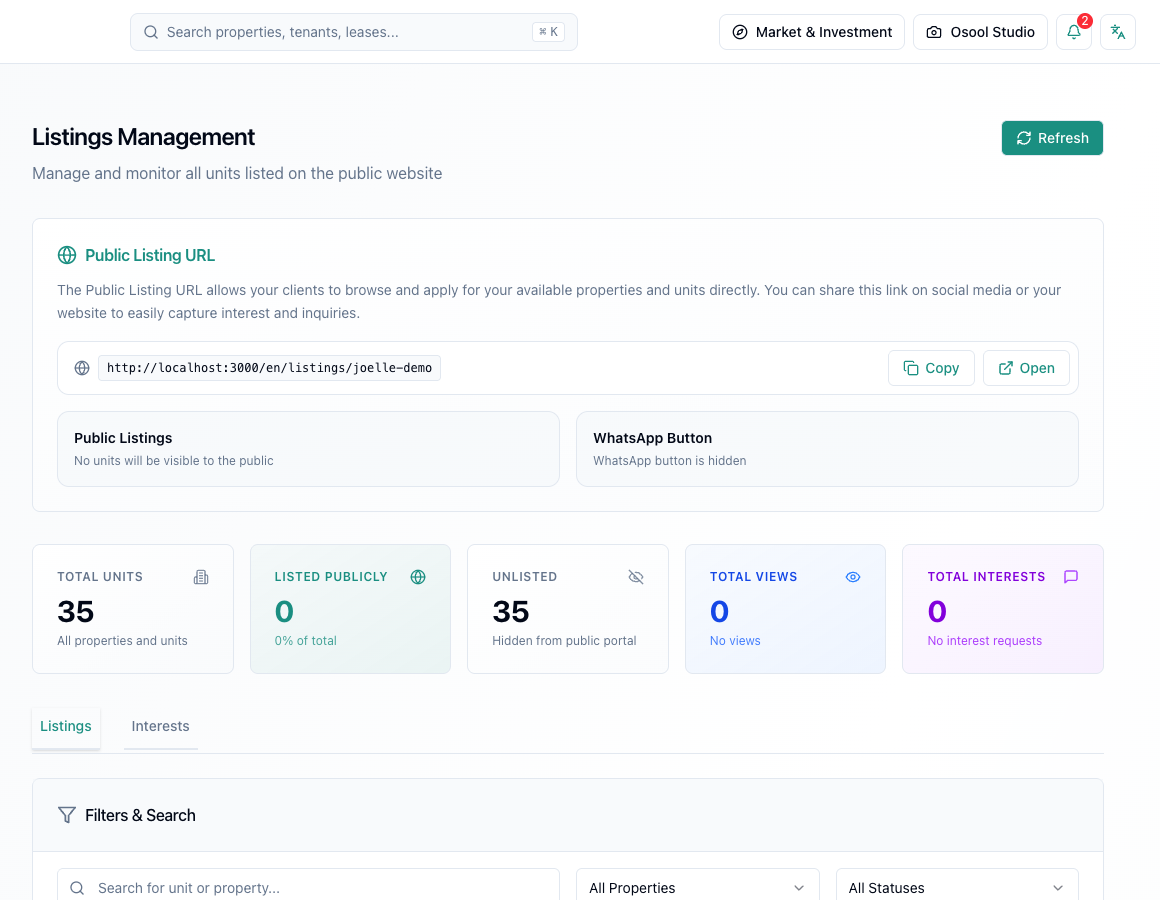
Good copy answers before the call
Good copy explains unit type, size, location, features, lease terms, and what makes it different from similar units. Do not rely only on generic phrases like great opportunity.
Every clear detail reduces repeated WhatsApp questions and improves inquiry quality.
Image order
Start with the clearest unit image, then living or main space, rooms, kitchen, bathrooms, entrances, and amenities. Avoid duplicate or dark images.
- Clear hero image
- Good lighting
- No duplicates
- Show important defects honestly
- Logical order
Final review
Before publishing, read the listing as a client who does not know the property. If you still need to ask the unit owner for basic details, the listing is not ready.
Using Osool Studio
Osool Studio can help explain space or prepare a marketing image, but do not imply furniture physically exists if it is virtual.
Listing data that makes a difference
Review price, images, description, publish status, public URL, views, and interest requests before judging marketing performance.
If unit information is incomplete, the result will show up as weak inquiries or repeated client questions.
- Price
- Images
- Description
- Publish status
- Views
- Interest requests
How to apply this inside the agency
Turn the article into a small dashboard action: open the related record, review the data, make the appropriate update, then document the outcome so the rest of the team can see it.
If the action involves a financial, regulatory, owner, or tenant-impacting decision, ask the responsible role to review it before final approval.
- Open the record
- Review data
- Take action
- Document outcome
- Escalate when needed
Product status and review needed
This is documented as an available workflow, but results can still vary by user permissions, agency settings, and data quality.
If a step described here is not visible in the agency dashboard, treat it as not enabled for your account and check with your admin or Product.
Related Articles
Osool Listings
Listing quality checklist
A checklist to review before publishing or sharing a listing with customers.
Read articleOsool Studio
Run Osool Studio: images, credits, and export workflow
How to use Osool Studio to prepare marketing images for units while tracking credits, gallery output, and available sharing options.
Read articleOsool Listings
Manage listing inquiries and follow-up
How to read interest requests and views, then turn them into organized follow-up instead of scattered WhatsApp chats and Excel files.
Read article