
Owners
Owner portal experience and expectations
How to prepare owner data and reports before inviting an owner to use a portal or digital statement.
Product Screenshots
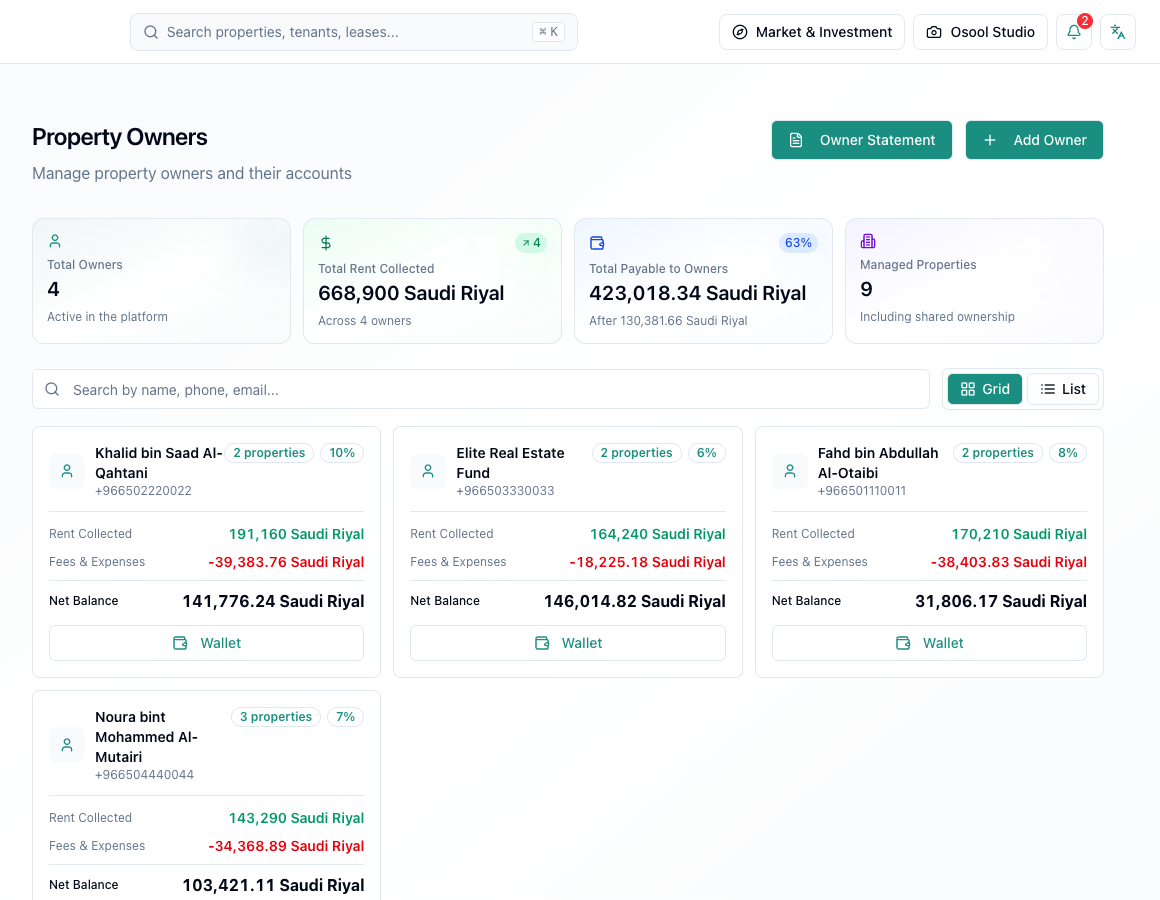
Do not invite before reviewing numbers
Before sharing any portal or digital statement, review owner balance, linked properties, expenses, collections, and ownership shares.
An owner seeing a wrong number the first time may lose trust in the whole system.
What to explain to the owner
Explain that balance is affected by collections, expenses, management fees, and previous payouts. Do not send a link without context.
- Balance
- Collections
- Expenses
- Management fees
- Period
Handle owner objections
If the owner questions a number, open the statement and related transactions instead of answering from memory. Tie every answer to a record, receipt, or expense.
Product status
Owner portal or digital invitations can vary by settings. If invitation or portal controls are not visible, treat them as In Progress or Needs Product Review.
Owner data that affects this article
Review owner links to properties and units, ownership shares, collections, and expenses before issuing a statement or payout decision.
Any owner wallet discrepancy usually comes from a collection, expense, or ownership link, not from the final balance alone.
- Linked properties
- Ownership share
- Collections
- Expenses
- Statement
How to apply this inside the agency
Turn the article into a small dashboard action: open the related record, review the data, make the appropriate update, then document the outcome so the rest of the team can see it.
If the action involves a financial, regulatory, owner, or tenant-impacting decision, ask the responsible role to review it before final approval.
- Open the record
- Review data
- Take action
- Document outcome
- Escalate when needed
Product status and review needed
This feature or workflow is partial. Use only the controls visible in the interface and do not assume every option is available for every agency.
If a step described here is not visible in the agency dashboard, treat it as not enabled for your account and check with your admin or Product.
Related Articles
Owners
Managing owners, wallets, and statements
How to store owner information and follow balances, payouts, and statements.
Read articleOwners
Owner wallets and reconciliation before payout
How to review owner balances, collections, and expenses before issuing statements or transferring payable amounts.
Read articleAdmin, Settings, and Account Management
Account security, roles, and audit logs
How to configure account language, timezone, user roles, and permissions before granting access to agency data.
Read article